How To Use Our New Appointment Features to Prepare for Consultations
By Medcorder Team in Medcorder.com
Visiting your doctor can be intimidating and even a little scary. Research indicates that “fear affects the cognitive functions of the brain: perception, attention, and memory.” Clarity, focus, and recall of medical advice are vital for making important choices for your well-being.
With Medcorder, you can track upcoming appointments, get prepared by organizing logistics with family, create a list of questions for your doctor, and get a high-quality recording and transcription of your consultation. Being prepared benefits you and everyone supporting your care.
Adding Upcoming Appointments
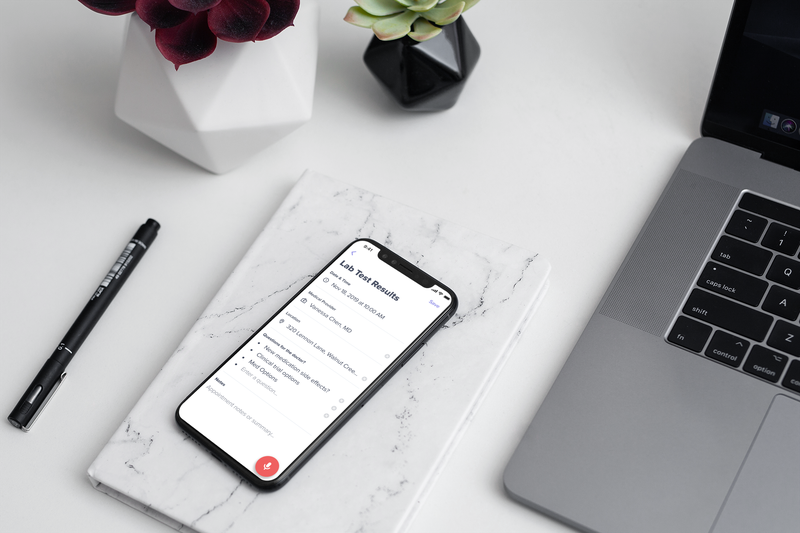
Once you’ve set up an account and shared patient group, add upcoming appointments by tapping the calendar icon in the lower left of your screen. When the appointment cell opens, add the appointment topic and all logistical information. You can add questions you want to ask your doctor to the appointment detail screen. Family members in your group can also view and add questions to the appointment detail.
To see upcoming appointments, tap the calendar icon in the upper right corner of your screen. In this view, you can see all past appointments and upcoming ones. You can also add a new appointment by tapping the plus sign in the upper right corner.
Planning and Collaborating with Family
Use the text feature in your patient group to exchange ideas with your family about how to prepare for your visit. You can also use this feature to arrange things like transportation, assistance with meals, and any other ways you might need help.
Access Questions and Take Notes While Recording
If you have added your upcoming appointment to your patient group, you will receive a reminder to record your consultation fifteen minutes before the start of your appointment. Tap the record button in the reminder banner to start recording. Make sure you follow best practices for recording.
To view your questions while recording, tap the “Questions” link at the bottom of the purple recording screen. To make notes, tap the “Notes” link located next to Questions. Notes will autosave to your appointment details.
Sharing What the Doctor Said
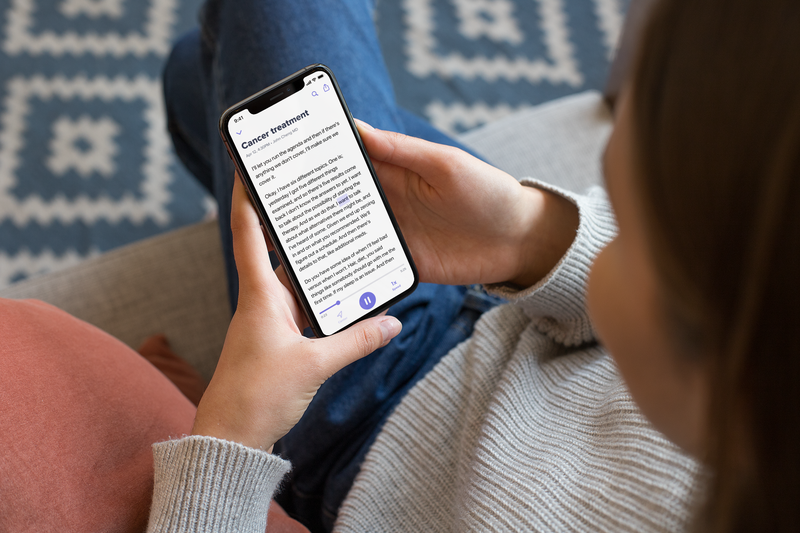
Saving your recording adds it to the appointment details. Please note that for long recordings of 20 minutes or more, it takes about half of the time for transcription to occur.
All family members who have been invited to your room and have installed the Medcorder app should be able to view your appointment details, including questions, notes, audio recording, and transcription. When you and your family know exactly what the doctor said, this ensures you get the best care possible.